Swapped phones, turned the shiny new one on, and now your mobile signal has vanished? Annoying, yes. But if you need to activate eSIM on new phone, the fix is usually quick – as long as you do it in the right order.
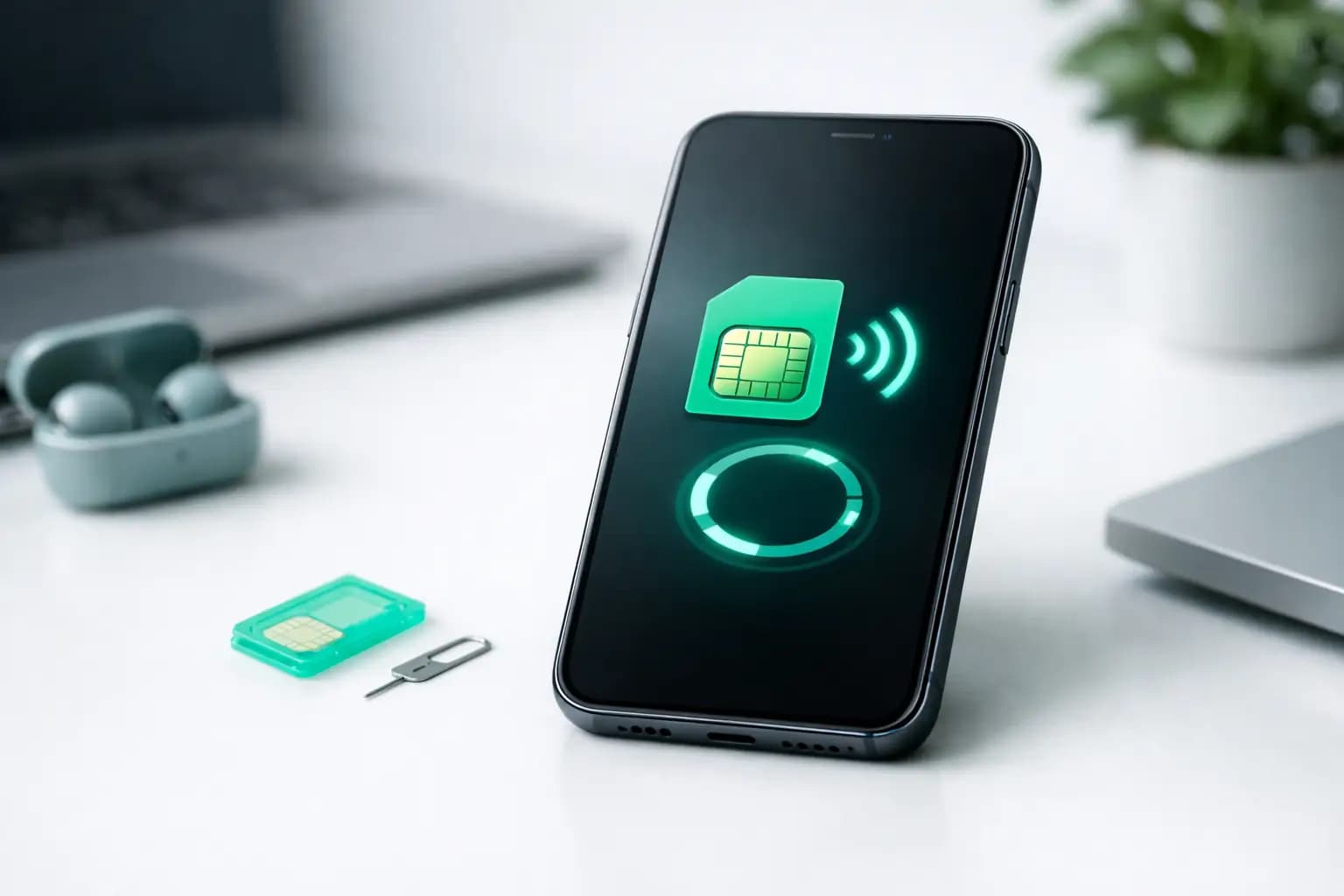
An eSIM is just a digital SIM built into the handset. No tiny plastic tray, no faffing about with pins, no dropping a nano SIM into the carpet. The catch is that moving an eSIM to a new device is not always as simple as signing in and carrying on. Some networks let you transfer it in a few taps. Others want a fresh QR code or a new activation through the app.
What to check before you activate eSIM on a new phone
Before you start pressing buttons, make sure the basics are covered. Your new phone needs to support eSIM, and not every model does in every region. Some handsets sold abroad have different SIM setups, so it is worth checking the exact model rather than assuming all versions are the same.
You will also want a solid Wi-Fi connection, because most eSIM activations happen online. If your old phone still works, keep it nearby and powered on. That matters more than people think, especially if your network sends a one-time code by text or requires you to approve the transfer from the original device.
A couple of other things can trip you up. If the new phone is network locked, your eSIM may not activate with a different provider. And if you wiped the old phone before transferring anything, you may have made the job harder. Not impossible – just more admin.
The three main ways eSIM activation works
There is no single rule across every network and handset. That is the first bit of honesty most telecom brands skip past. In practice, activation usually happens in one of three ways.
1. Direct transfer from your old phone
This is the easiest option. On newer iPhones and some Android devices, you may see a prompt during setup to transfer your mobile plan from the old handset. If both phones are compatible and your network supports it, you can approve the move on screen and let the device do the heavy lifting.
This is the cleanest route because it keeps your number attached to the same service without needing a printed QR code or a separate activation email.
2. Scan a QR code from your network
Some providers issue an eSIM QR code when you first order the service or when you request a SIM swap. On the new phone, you go into mobile settings, choose to add an eSIM or mobile plan, then scan the code using the camera.
Simple enough – unless the QR code has already been used or expired. That is a common snag. Many QR codes are single use, so if the original eSIM was installed on your old handset, you may need a brand new one for the new device.
3. Activate through your network app or account
A few networks have finally joined the modern era and let you manage eSIM inside their app or online account area. If that option is available, use it. It can be faster than waiting for support, and it usually reduces the chance of activating the wrong line on the wrong device.
The exact wording varies, but look for options like replace SIM, move eSIM, activate mobile plan or switch device.
How to activate eSIM on new phone step by step
The details vary by handset, but the general process stays fairly similar.
Start by connecting the new phone to Wi-Fi. Then open Settings and go to Mobile Data, Cellular, Connections or SIM Manager, depending on the brand. Choose the option to add an eSIM or mobile plan.
If your provider supports transfer from the old handset, follow the prompts on both devices. You may need to approve the move on the old phone, enter a verification code, or confirm through your network app. Once approved, the service should shift across and the old eSIM will usually deactivate.
If you are using a QR code, select scan QR code and point the new phone’s camera at it. The phone should detect the mobile plan and ask for confirmation. Tap continue, wait for the profile to download, and then let the device register on the network.
If your network uses manual activation details rather than a QR code, enter the SM-DP+ address and activation code exactly as provided. This is where people get caught out by mistyping one character and then blaming the phone. Fair enough, but check twice.
Once the eSIM is installed, make sure it is switched on in settings and set as the default line for calls, texts and mobile data if that is what you want. Dual SIM phones can keep multiple lines active, so your old preference may not carry over automatically.
Finally, give it a few minutes. Signal bars do not always appear instantly. A quick restart can help if the profile is installed but the network has not shown up yet.
iPhone and Android differences worth knowing
Apple and Android both support eSIM, but the menus are not identical. On iPhone, you will usually find everything under Settings, Mobile Data. During setup, Apple may offer to transfer the plan automatically if the network allows it.
On Android, the route depends on the manufacturer. Samsung, Google Pixel and other brands often place eSIM settings under Connections or Network and Internet. Some Android phones also let you store more than one eSIM profile, but only use one or two active lines at a time.
The bigger difference is network support. A phone can be eSIM-ready on paper and still behave differently depending on your provider’s activation system. That is why “it should work” is not always the same as “it will work first time”.
Why your eSIM might not activate
If activation fails, the issue is usually one of a few usual suspects.
The QR code may be invalid, expired or already used. Your phone may be locked to another network. The old eSIM may still be tied up in a transfer process that has not completed properly. Or your provider may need to issue a replacement eSIM profile before the new phone can register.
There is also the simple stuff. No Wi-Fi, outdated software, poor signal during setup, or choosing the wrong menu can all slow things down. Not glamorous, but real.
Quick fixes before you contact support
First, restart the phone and check that the software is up to date. Then go back into mobile settings and confirm the eSIM profile actually appears. If it is there but inactive, switch it on manually.
If there is no profile at all, try the activation again with the original instructions. If the QR code fails a second time, stop there. Repeated attempts will not magically revive a dead code.
Also check whether your old device still has service. If it does, the transfer may not have completed. If it does not, but the new one also has no signal, your line may be stuck between devices and needs a network-side reset.
When you need a new eSIM from your provider
Sometimes the answer is not buried in settings. You simply need your network to issue a fresh eSIM. That is especially common if you have changed from iPhone to Android, moved between network systems, deleted the old eSIM too early, or used a QR code that was never meant for multiple activations.
This is where decent customer support matters. A provider should be able to tell you plainly whether your current eSIM can be transferred, whether a new activation is needed, and how long the switch will take. No scripts. No passing you round departments for sport.
If you are changing phones often, using dual SIM for work and personal numbers, or managing several staff mobiles, it is worth choosing a provider that makes eSIM swaps straightforward. Giant, for example, keeps the focus where it belongs – simple setup, human support and none of the baffling telecom theatre.
A note on keeping your number
If you are staying with the same network and just changing phone, your number should move with the eSIM. If you are switching providers as well, that is a different process. You will need to complete the number transfer with your new network first, usually using a PAC, and then activate the eSIM on the new handset once the transfer is scheduled or complete.
Doing those steps in the wrong order can leave you in limbo for a bit, with the number on neither device properly. Not forever, but long enough to be irritating.
Is eSIM better than a physical SIM on a new phone?
Mostly, yes. It is quicker, tidier and ideal for dual SIM setups. It also cuts out waiting for a bit of plastic to arrive in the post. For frequent travellers, people with separate work numbers, and anyone who is bored of fiddling with SIM trays, eSIM is a better setup.
That said, physical SIMs still have one advantage: they are dead easy to move by hand. If your network has clunky eSIM processes, a plastic SIM can sometimes be less hassle. The technology is smart. The support behind it still depends on the provider.
If you need to activate eSIM on new phone, the best approach is simple: check compatibility, keep the old phone close, follow your provider’s process exactly, and do not bin the original setup details until the new handset is fully live. A five-minute job is lovely. A two-hour support chase is not.